


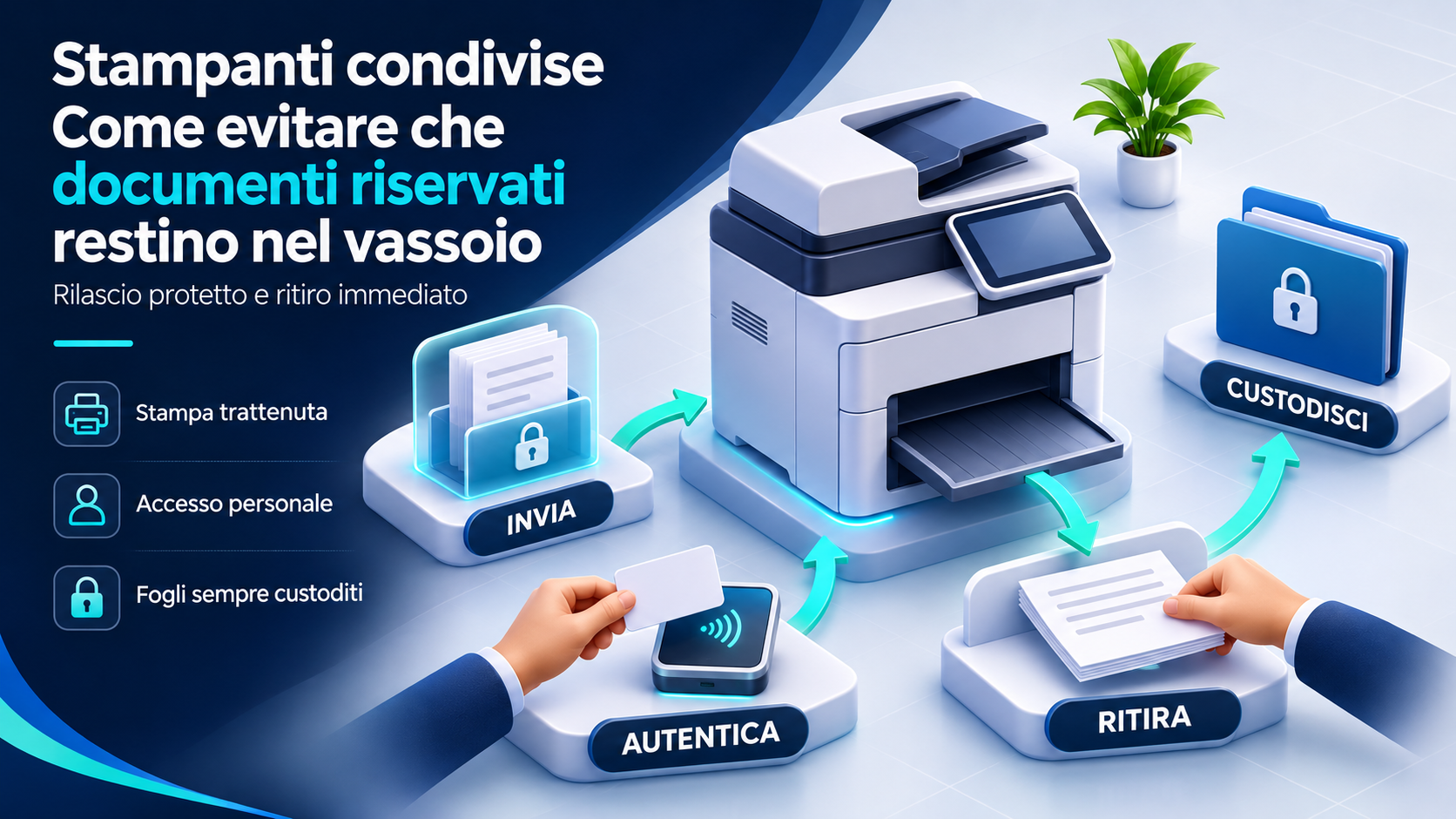
A shared printer can become a weak point even in a well-organized office. All it takes is sending a contract, answering a phone call and forgetting to collect it: the document remains in the tray, where colleagues, visitors or outside staff may pass by. The risk is not limited to the most sensitive files. Quotes, customer lists, schedules and internal communications can contain information that should not be left available to everyone.
Reducing the problem requires technical settings and consistent habits. Private printing, with release through a PIN or authentication, helps ensure that pages come out when their owner is present. However, queues, printer memory, originals in the scanner and disposal of unwanted pages also need consideration. This guide offers a practical approach for small businesses and professional practices, taking differences between devices and printing systems into account.
Why the output tray is part of business security
When a file becomes paper, it no longer benefits from the same controls as a digital document. An account can restrict who opens a folder, but it cannot stop someone reading a page that has already been printed. The tray is therefore a transition point between an environment with permissions and a physical space that needs other precautions.
There is no need to imagine a complex attack. Someone may accidentally pick up another person's file with their own, photograph a visible page or take a document to the wrong room. The aim is to shorten the time paper remains unattended and make clear who must collect it. Treating the printer as part of the document process allows the issue to be addressed before it becomes an incident.
Identify which documents need greater care
The first step is to understand what is printed and by whom. Administration, human resources, management and sales may have different needs. Contracts, staff information, bank details and customer documents require careful handling; even a simple list may be confidential if it reveals activities or relationships that are not public.
A brief review with managers helps distinguish routine flows from more sensitive ones. There is no need to collect copies of documents: describing their types, frequency and the printer used is enough. The company can then decide where authenticated release should be mandatory, where clear instructions are sufficient and which printing can be avoided by using a digital channel already approved by the business.
Trace the route from the computer to paper
A job can leave a PC and pass through a server, a cloud service or go directly to the printer. Smartphones, business applications and web apps may also use different routes. Before changing settings, establish which queues exist and which users can see them: a secure queue does not protect a document accidentally sent to the direct-print queue.
Recording the model, location, queue name, driver and technical contact provides a concrete starting point. Also check printers installed in the past or duplicated under unclear names. A recognizable name, such as the department and room, reduces destination errors. The main purpose of this inventory is to avoid leaving alternative routes that unintentionally bypass the chosen procedure.
How private printing works
With a private printing feature, a job is held rather than producing pages immediately. The user goes to the machine and releases it using the supported method, for example by entering a PIN. The goal is to link document output to the presence of the person collecting it, reducing printouts left waiting in the tray.
Commercial names and details vary. For example, Canon's documentation on PIN-protected printing describes jobs temporarily retained in the machine's memory. The HP guide to stored jobs distinguishes several storage and private printing modes. Before choosing one, check which option is actually available on your model.
Check compatibility and requirements
Shared printers do not all offer the same features. One model may support a PIN through its manufacturer's driver; another may require a management solution or accessory. The operating system and submission route may also affect which options are available. A display alone does not prove that private release is configured.
Ask the IT contact or supplier to demonstrate the feature on the actual device using a document without confidential information. Check which applications it works from, how the user is identified and what happens after printing. If a new service is needed, assess licensing, maintenance, support and data handling before purchasing. A useful feature covers the office's real workflows, not just an isolated demonstration.
Configure the driver and run a complete test
The starting point may be the print properties window, where the driver exposes options such as personal job, secure print or job storage. Names are not universal: follow the manual for the relevant model and version. A generic driver may not offer the same settings as the package provided by the manufacturer.
After configuration, send a test file and confirm that no pages emerge before release. Go to the machine, select the job, complete authentication and check the output. Repeat the test from a different application and after signing in to the computer again. Saving a preference is not enough: demonstrate that the route colleagues actually use follows it.
Choose between a PIN and a badge
A PIN can be practical when it is available directly on the device and the number of users is limited. A badge can simplify authentication in environments that already have compatible identity management. The choice should consider how people are registered, how access is revoked and what happens when a code is forgotten or a card is lost.
Avoid one publicly known code for an entire department when the aim is to distinguish who can release jobs. Do not leave the PIN on a note beside the printer. For badges, define a procedure for loss and replacement. The method should be simple enough for daily use and sufficiently controlled to avoid becoming a purely formal step.
Make the secure route easy to choose
If every document requires remembering a complicated procedure, someone will eventually use immediate printing. Make the intended queue recognizable and, where supported, consider default settings consistent with departmental needs. Before applying them to everyone, check workflows needing special behavior, such as forms automatically produced by business software.
Exceptions should have a clear reason and an owner. A direct queue left available without explanation can become the habitual choice. During configuration, observe how people actually print: if they must navigate several windows or do not understand where to find their job, simplify the route. Clear interfaces and names help keep the procedure in regular use.
What changes when jobs can be released on several printers
Some solutions allow users to send a job to a queue and later choose the device where they will collect it. This can help in locations with several machines, but authentication, devices and the management service must be integrated. It should not be assumed to exist on every network printer.
There are also systems using a QR code and a work account for release. The Microsoft Universal Print documentation describes this process and its access requirements. If different methods overlap, check how they behave: two uncoordinated layers can require two releases and confuse users. The solution should provide a route that can be explained from submission to collection.
A PIN does not describe every document protection
Releasing jobs at the machine primarily addresses the risk of pages being printed without their owner present. A PIN alone should not be taken to mean that all transfers are encrypted or that every digital copy is permanently erased. These are separate matters to check in the features and configuration of the chosen system.
For the network side, a technician can review supported protocols, communication settings and administrative access. HP's recommendations for network environments address printing, web communications and storage protection separately. A complete check avoids crediting a single feature with effects that have not been tested on the device.
Decide how long to retain uncollected jobs
Holding print jobs is useful, but that does not mean they should remain available indefinitely. Setting a retention time that fits the work reduces the accumulation of forgotten jobs. Once they expire, users should know whether to submit the document again and how to recognize a job that is still available.
Timings and behavior after a restart depend on the system: consult its manual rather than assuming one common rule. Also check whether a job is removed after printing or remains available to produce further copies. A practical test using dummy data can document what happens after release, cancellation, expiry and shutdown.
Avoid confidential information in job names
The printer or queue display may show the filename, user and other details. Even without printing the content, a title may reveal a negotiation, a personnel matter or a customer's name. Before rolling out the solution, check what other people can see and what is visible only to the authenticated user.
Where the system allows custom job names, use an understandable reference without unnecessary details. Do not put the PIN in the filename. The same care applies to notifications, history and screenshots taken during support. Good print management also covers the metadata that travels with the document along its route.
Choose the printer's location carefully
A machine beside reception or in a corridor used by visitors requires different precautions from a printer in an access-controlled area. Consider who can approach the output tray and scanner bed, not just how convenient the network socket is. Location can reduce opportunities for accidental reading, although it does not replace prompt collection.
For departments handling sensitive documents, consider a more protected location or a specific process. Avoid letting the collection point for discarded pages become an open archive. Space organization matters too: a table full of printouts awaiting sorting makes it hard to distinguish owners, correct copies and forgotten documents.
Collect the pages and check the complete document
Authenticated release loses some of its value if someone starts printing and immediately walks away. Remaining by the machine until it finishes, checking the page count and collecting the complete document are simple habits that reduce mix-ups. For long documents, plan collection rather than starting them while leaving the office.
If other people's documents are in the tray, do not take them with your own or distribute them by guessing the recipient. Define an internal contact for unattended printouts. The procedure should allow material to be secured without further exposure or asking everyone to read it to work out who owns it.
Remember originals and the scanner
Confidentiality is not limited to the output tray. An original can remain on the glass or in the feeder after copying or scanning. The printed page is collected, while the source document remains visible to the next person. The final check should therefore cover both areas.
For scans, also verify the destination before sending, especially if the device retains an address book or recent routes. Do not automatically reuse the previous colleague's selection. A short sequence, such as checking the original, destination and collection, is easier to remember than a long list of prohibitions. Secure printing features do not replace these checks on the multifunction device's other operations.
Manage accounts, permissions and support
The person administering the printer should be able to configure the system without using credentials known throughout the office. Distinguish technical access from the access needed to collect documents, and update permissions when someone changes role or leaves the company. Support providers should also have defined arrangements for interventions.
Visibility of held jobs should be checked for each role: users, departmental contacts and administrators may have different capabilities. During support, use test files and limit screenshots containing real references. If an operator needs to access a document to solve a problem, agree the process with the responsible person rather than sharing credentials or files without control.
Use history and logs for a clear purpose
Logs can help establish whether a job was submitted, released or cancelled, where the system provides this information. They can assist with queue problems or checking a setting. However, a log entry does not prove who physically collected the pages once they emerged.
Decide what data is needed, who may view it and how long it should be retained. Avoid collecting details simply because the platform makes them available. Print monitoring should support operation and document protection; before using it for other purposes, assess the context and applicable rules. Explaining what is recorded reduces misunderstandings and incorrect expectations.
Plan for faults and apparently stuck jobs
When paper runs out or a connection fails, a user may send the same document repeatedly, believing it never arrived. Once service resumes, all the copies may emerge together. Before retrying, check the queue and device status, then cancel unnecessary submissions using the established procedure.
Define an alternative for urgent documents if authentication is unavailable. The exception should not become automatic printing into an open area with nobody attending it. If a fault prevents confidential jobs from being deleted, involve the technical contact and check what happens on restart before leaving the machine available for everyone again.
Dispose of incorrect printouts and unnecessary copies
An incorrect page retains the information in the correct document. Do not leave it beside the printer or reuse it for notes if it contains confidential data. Provide a collection and destruction process appropriate to the content, with containers and responsibilities that people working in the area understand.
Avoid piles “to sort out later”: over time, discarded pages, documents still awaiting delivery and originals become difficult to distinguish. Reducing copies also simplifies physical handling. Before printing an entire file, check the preview, page selection and recipients. If a document can be shared through an already authorized company digital system, consider whether a paper copy is genuinely needed.
Consider memory, leasing and device replacement
Some multifunction devices retain data on internal storage; characteristics depend on the model, features and configuration. The Federal Trade Commission's guide to copier data security also highlights returning leased machines and disposing of devices with storage. Turning equipment off should not be treated as verification that data has been erased.
Before returning, replacing or selling a machine, ask the supplier how to handle stored jobs, existing data, address books and settings. Agree on a documented procedure suited to the device. For businesses buying or leasing a new machine, clarifying these matters at the outset establishes who will act at the end of service and what evidence can be provided.
Introduce the procedure through a small pilot
Starting with one department allows the solution to be tested without changing the entire printer fleet at once. Choose users with different activities and test ordinary documents, long files, cancellations and printing from particular applications. Gather practical problems: forgotten PINs, unclear names, unrecognized sign-ins or jobs that fail to appear.
Prepare brief instructions covering submission, release, collection and requests for help. Use dummy data in example screenshots. After testing, distribute the settings and identify the support contact. A reminder beside the machine can prompt people to check the tray and originals without exposing access codes or instructions that allow authentication to be bypassed.
Check periodically to maintain the result
A regular review can follow these points:
- Test that a private job does not print before release.
- Check available queues, names and default settings.
- Verify job expiry and behavior after printing.
- Review access rights, badges and accounts no longer needed.
- Check discarded-paper collection, originals and machine location.
- Update instructions and contacts after changes or replacement.
Record what was tested and the issues to resolve, assigning an owner. Checks should also follow changes to drivers, services or configuration: a preference that worked previously may not apply to the new route. Invented statistics are unnecessary for assessing improvement; repeatable tests and fewer unattended documents are enough.
Frequently asked questions
Does a PIN protect the pages after printing too?
No. A PIN controls release according to the system's features. Once pages emerge, they must be collected and safeguarded. The person starting the print should therefore remain near the device and check that the complete document has been collected.
Can all colleagues use the same code?
A shared code does not distinguish who is authorized to release individual jobs. The choice depends on the solution, but individual identification and access management should be considered for confidential documents. The technical contact should check what the model supports and how to avoid codes readily available to everyone.
Is a held job always deleted after collection?
Not necessarily. Retention can differ between personal jobs, stored jobs and other device options. Reading the manual and testing with dummy data establishes whether a job remains available, can be reprinted or expires after a configured interval.
Do we need to buy a new printer?
Not always. The existing machine may already support a suitable feature or be compatible with a management service. Before purchasing, check the model, driver, accessories and required workflows. If available features are insufficient, comparison of alternatives should also include management and support.
Conclusion: documents should print when you can collect them
To prevent confidential documents from being left in the tray, the desired result is simple: paper should emerge when the person responsible can collect it. Held printing, authentication and retention periods help build this process, but require tested settings and understandable instructions.
Management continues after release: collect pages, retrieve originals, handle discarded copies correctly and consider data retained in the machine. An office that assigns responsibilities and checks these steps reduces opportunities for exposure without unnecessarily complicating everyday work.
Would you like to explore this topic for your business? Azienda Digitale can help you assess the right solutions and put them into practice. Azienda Digitale