


A printer has stopped working, and the technician asks to see the screen. While diagnosing the problem, they find that they need to reinstall the driver. At that point, both the task and the permissions it requires change. Talking the user through the initial checks may be enough, while installation may require administrative approval. If the technician needs to return after a restart, decide how they will reconnect.
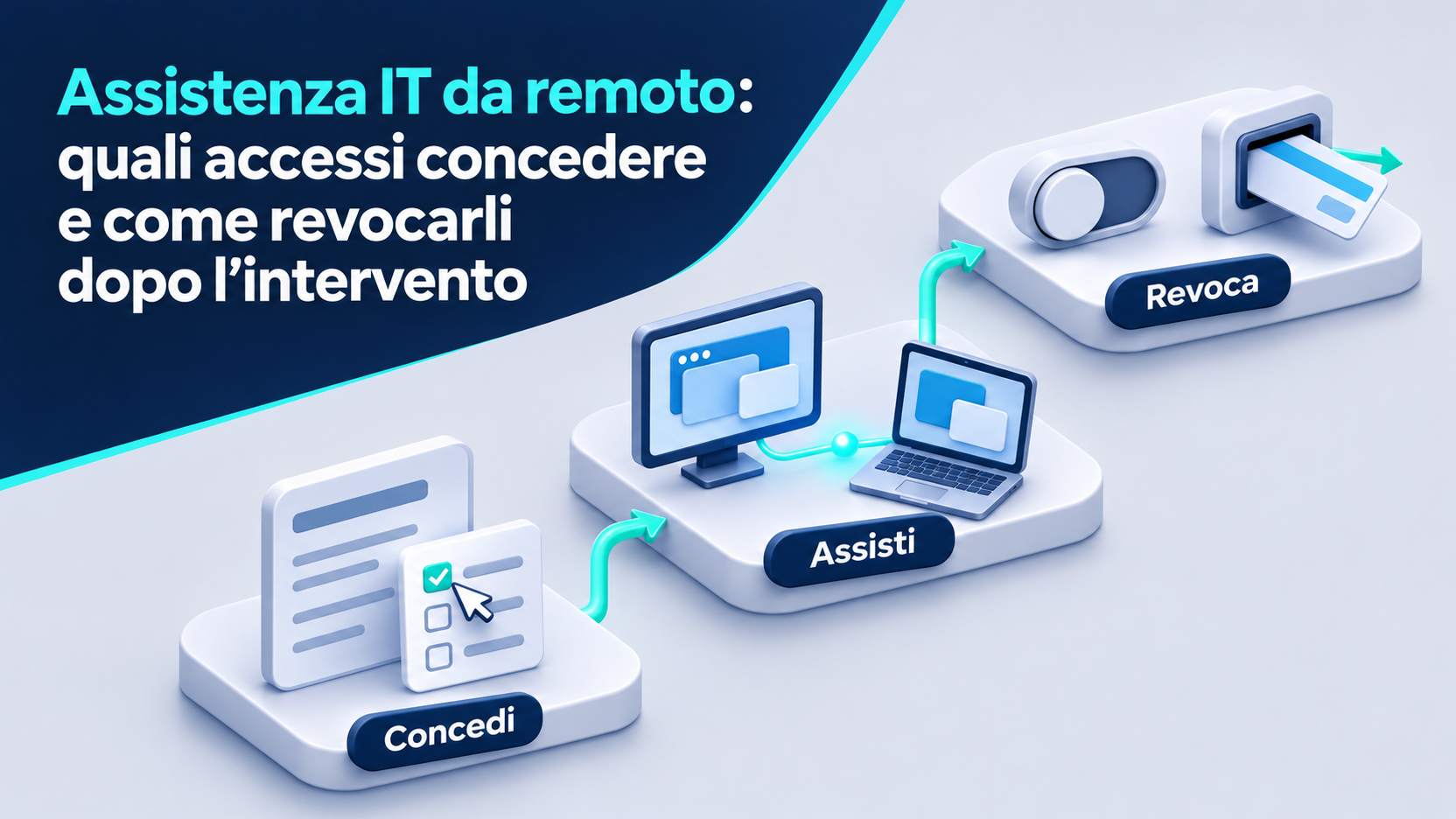
For remote support, tie each access grant to a specific job. Before you begin, decide who will connect, which device they will access and what they will do. During the session, approve additional permissions as needed. At the end, verify that the connection has ended and check for any permissions that could allow the technician to reconnect.
Open a ticket with a clear scope
State the problem, the affected device and the result to verify in the ticket. “Restore printing from the administration team’s laptop” gives a clearer scope than “check the computer.” Specifying the result helps the technician prepare the tools and allows the company contact to assess whether the requested access fits the job. Also note who can authorize changes and who will run the final test.
If a different problem emerges, update the ticket before expanding the scope. A configuration error on the print server, for example, may require involving the server administrator and finding a time that works for other users. The permission granted for the laptop applies to the workstation identified in the original request.
Verify the technician’s identity and contact channel
Arrange the session through your usual support portal, number or contact. Match the request to the ticket and verify which tool will be used. If you receive an unexpected call or the sender asks you to open an unfamiliar link, contact support using details you already know before accepting. Do the same even if the caller knows the company name or computer model.
If the tool uses a session code, exchange it with the verified technician through the agreed channel. Each code is for the job it was generated for. Microsoft recommends allowing Quick Assist connections only with people you trust and being cautious about unsolicited support requests. Microsoft’s guide to Quick Assist
Choose a tool approved by the company
Start with the tools your IT department has approved. Before using a product suggested by a provider, check whether it requires installation, whether you can restrict its features and what events it logs. Find out how the technician authenticates and whether the device stays associated with a console after the connection. For a one-off job, find out how to start and end the session and remove any temporary components.
A program that runs without installation can still perform actions on the workstation during a session. Include these tools in your assessment. The joint guidance published by CISA recommends explicitly approving remote access tools and limiting their use and the actions they can perform. CISA guide to securing remote access software
Start by sharing the screen
If the technician needs to read an error message or point out a setting, sharing the screen while the user keeps control of the mouse and keyboard may be enough. If the tool allows it, select the relevant window or monitor. Ask in advance which part of the screen will be visible. In Windows Quick Assist, starting screen sharing and granting full control are separate steps. Microsoft’s guide to Quick Assist
Preparing what the technician needs to see reduces interruptions during diagnosis. Open the relevant application and, if necessary, reproduce the issue with a test document. For a simple error, a screenshot with unrelated information removed may be enough. Attach it to the ticket. If diagnosis continues live, the user will already know which steps to repeat.
Grant mouse and keyboard control for a specific task
Interactive control is useful when the technician needs to reproduce a sequence or change a setting. Before accepting, ask what they will do and how to stop control or end the connection. Keep the disconnect control visible and stay available to confirm any steps beyond the original request. Agree on who will take back the keyboard for the final test.
If the technician switches applications, pause long enough to clarify why. For example, opening print settings fits the diagnosis of a stuck print queue. Opening a shared folder calls for identifying the files needed. When the task is complete, take back local control and verify that you can resume normal work.
Approve administrative privileges when needed
Remote control and administrative privileges are separate permissions. In Windows, User Account Control, or UAC, can ask for consent or credentials to run a task with elevated privileges. The prompt depends on the account type and configuration. If it appears during support, verify which program triggered it and what change it needs to make. Have the authorized person handle it according to company procedure. Microsoft Learn on how UAC works
If a system for assigning temporary privileges is available, use it for the agreed task and duration. Record the role or group assigned and who will verify its removal. If the technician needs to install a driver, tie the authorization to the approved package and affected machine. Leaving an administrative account available for possible future visits makes it harder to determine which access is still needed.
Keep passwords and codes out of the session
Use individually assigned accounts and have the account holders authenticate themselves. If the user needs to sign in to an application to demonstrate an error, pause sharing or control when required by procedure. Resume the session after sign-in. For administrative tasks, the IT contact can use their own account or the designated elevation system and keep secrets out of the support chat.
Approve a multifactor authentication request only if it matches a sign-in you initiated and verified. Report any unexpected notification through the company’s reporting channel. Ask the provider whether console access uses individual accounts and multifactor authentication. These measures protect access to the tool used to reach workstations. CISA guide to securing remote access software
Prepare the screen and limit visible data
Before connecting, close email, chats, documents and browser tabs unrelated to the issue. If possible, pause notifications that display message contents. At a desk with two monitors, check where applications are open and which screen you are sharing. Prepare a test file if you can reproduce the issue without using customer documents or employee data.
If you need to show real information, agree on what is essential and keep it open only during that step. Content you take off screen may still be accessible through another feature, such as file browsing, if you have enabled it. As well as preparing the screen, check which features are enabled for the session.
Authorize file transfers, clipboard sharing and recording separately
Check whether the platform can transfer files, sync the clipboard or record the session. If you need to send a log, identify the file, its destination and who can receive it. Check the contents before sharing. If you need to receive a program or script, have its source and intended use recorded in the ticket. Use the company-approved file exchange channel when it meets the need.
If the work is recorded, clarify who starts the recording, where it will be stored and who can view it. At the end of the session, note the materials exchanged and any copies that need to be handled. Disconnecting ends the session. Files already transferred and recordings already saved must be handled wherever they were sent or stored.
Use unattended access only for an agreed need
Unattended access lets the technician connect without someone at the workstation accepting each session. It can be useful for scheduled maintenance outside working hours or for a system that runs without a user. Before enabling it, define which machines can be reached, from which accounts, for which tasks and until when. Make sure someone is available if problems arise.
Check whether the tool supports an expiration time or access window and, if available, set the agreed one. Decide who will review access and who will remove the authorization. Overnight work on a single device may require permission for that machine and that time window. Assess access to the entire department’s device group as a separate scope.
Limit provider access to the devices and services needed
If the provider needs to connect through a VPN, portal or console, identify the resources they need to reach. For work on one workstation, check whether access can be assigned to that device alone. If the job involves an application, ask which application role is needed. IT can restrict the network path and the devices exposed using the tools available. CISA guidance on network controls and segmentation
If the technician uses several systems, note how they sign in to each one. A provider may use one account for the VPN and another for the support console. Recording both in the ticket makes it possible to revoke access precisely. Also check any groups assigned to the provider organization, as they may determine which devices individual technicians can see in the console.
Agree on the restart and reconnection in advance
A restart can drop the connection while work is still underway. Before proceeding, save documents and decide whether the user must start a new session or whether the tool has an authorized reconnection feature. Confirm who will be available when the device comes back up and who can help on site if it remains unreachable.
Record each setting enabled to allow reconnection after the restart. If the technician temporarily enables automatic reconnection, add a ticket item to turn it off after testing. If another visit is needed, schedule the next window and decide how it will be authorized. The work still to be done stays documented even if the technician or company contact changes.
End the session using the tool’s disconnect control
When the technician finishes, run the agreed test, such as sending a test page to the printer. Then use the tool’s control to end the connection. If the voice call is in another application, check the support software’s status separately. For Quick Assist, Microsoft provides a control for leaving the session. Microsoft’s guide to Quick Assist
If there is an administrative console, ask whoever manages it to confirm that the connection has ended. Record the time and test result in the ticket. If separate sessions were opened, for example on the laptop and on the server, close both and record the result for each system.
Remove temporary accounts, roles and group memberships
Go back to the list of permissions granted and check which ones were tied to this job. The IT lead can remove the technician from the assigned group, revoke the application role or disable the temporary account according to company procedure. Check local accounts on the device as well as accounts used for the console, VPN or identity service. For existing shared accounts, work with their administrator to identify any exposed credentials and which ones need replacing.
Record the account, resource and action taken. Before making changes to a group also used for other work, identify the specific assignment added for the ticket. That lets you revoke the permission that was actually granted and check that the access still needed for operations continues to work.
Check for persistent services, agents and device associations
Check whether an agent or service that starts with the system was installed during the job, or whether the device was added to a provider console. Also check whether a built-in sharing or remote management service was enabled. On macOS, for example, Sharing settings let you configure access for specific users. Apple’s guide to Sharing settings on Mac
For temporary components, follow the product instructions to disable access, remove the device association and uninstall the component where applicable. If the agent is part of routine device management, check with IT which provider permissions to remove in the console. Check both sides when possible. A workstation can have a local configuration and a separately managed assignment.
Revoke local permissions and application authorizations
A session may have required operating system permissions. On macOS, you can change access to screen and system audio recording for individual apps in privacy settings. Check whether Accessibility features were also authorized during the work. Remove the temporary permissions for the relevant app, taking company-managed settings into account. Apple’s guide to screen and system audio permissions
Distinguish these settings from consent granted to an application to access a company service. For example, if an integration was allowed to read information for diagnosis, ask the service administrator to verify and revoke that temporary consent wherever it was granted. Check computer permissions and service permissions in their respective tools.
End sessions in the other services the technician used
After removing a role or disabling an account, check how the platform handles sessions that are already open. Some services keep a session active until it expires or the application ends it. Microsoft Entra documentation explains, for example, that a session issued directly by an application is managed by that application. Consult the instructions for the system you used and check where action is needed. Microsoft Learn on revoking access
If the technician used a VPN, a console and a portal, check each for active connections and the ability to start new ones. If another administrator needs to perform a check, assign it to them in the ticket and record the result before treating revocation as complete.
Confirm revocation and record exceptions
Compare the ticket with the current state. Verify that the temporary account is disabled or the role is no longer assigned, that the console shows no active sessions and that the agreed unattended access has expired or been disabled. If the device is offline and the removal has yet to reach it, record the pending check and who will follow up when it comes back online.
Keep a record of times, identities, devices, main actions and outcomes. The tool’s logs can help reconstruct connections and activity, depending on the detail available. If access must stay open to finish the job, record the reason, scope, expiration and person responsible. CISA guidance on monitoring remote access
End a suspicious session and notify IT
If the technician asks for credentials or permissions unrelated to the job, or opens resources without a clear explanation, end the connection and contact support using a known number or channel. Report when the session started, the tool used and what you saw. If you shared information or approved access requests, tell the security team immediately.
If unauthorized access is suspected, IT can assess whether to isolate the device, revoke credentials and sessions, and preserve logs or other material for investigation. Follow the company’s response plan before deleting files or programs that could help establish what happened. Disconnecting is the first step. Containment depends on what the person accessed. CISA incident response playbooks
Support ticket checklist
Use this checklist to authorize the work and record its closure.
- Before the session, confirm the technician’s identity, ticket, tool and device.
- Choose the features needed and identify who can approve additional privileges.
- Agree on any transfers, recordings, restarts and reconnection procedures.
- Test the result with the user and end all open connections.
- Remove roles, accounts, permissions and persistent access granted for the job.
- Check for remaining sessions and record who verified revocation.
- Note any outstanding tasks, with a deadline and a person responsible.
A ticket with the results of tests and revocations lets a colleague take over without having to infer from chat messages which access is still available.
Frequently asked questions
Do I always have to give the technician control of the computer?
For many initial checks, showing the error and following the technician’s instructions is enough. Grant mouse and keyboard control when a task requires it. If administrative privileges are also needed, use company procedure to authorize them for the specific operation.
Can the technician reconnect if I close the window?
It depends on the tool and how it was configured. Verify that the session is marked as ended. Then check whether unattended access was enabled or the device is still assigned to an account or console that can open a new session.
Do I have to uninstall the program after every job?
Follow company guidance for the tool you used. A component installed for a one-off visit may need to be removed along with its device association. If the program is part of routine device management, have IT verify the permissions granted to the technician for that specific job.
Does changing the password end all access?
Also check active sessions and access granted through other accounts, groups or applications. Revocation depends on the service. If a credential was exposed, IT can replace it and separately check for sessions and permissions that could still allow access.
Conclusion
A remote support job is complete when the result has been verified and the access granted to achieve it has been checked. Define the task in the ticket, start with the permissions needed and record any additional authorizations. After disconnecting, use the same list to remove roles, temporary settings and ways to reconnect. The ticket should tell anyone reading it what was revoked and who will complete any outstanding checks.
Would you like to explore this topic for your business? Azienda Digitale can help you assess the right solutions and put them into practice. Azienda Digitale