


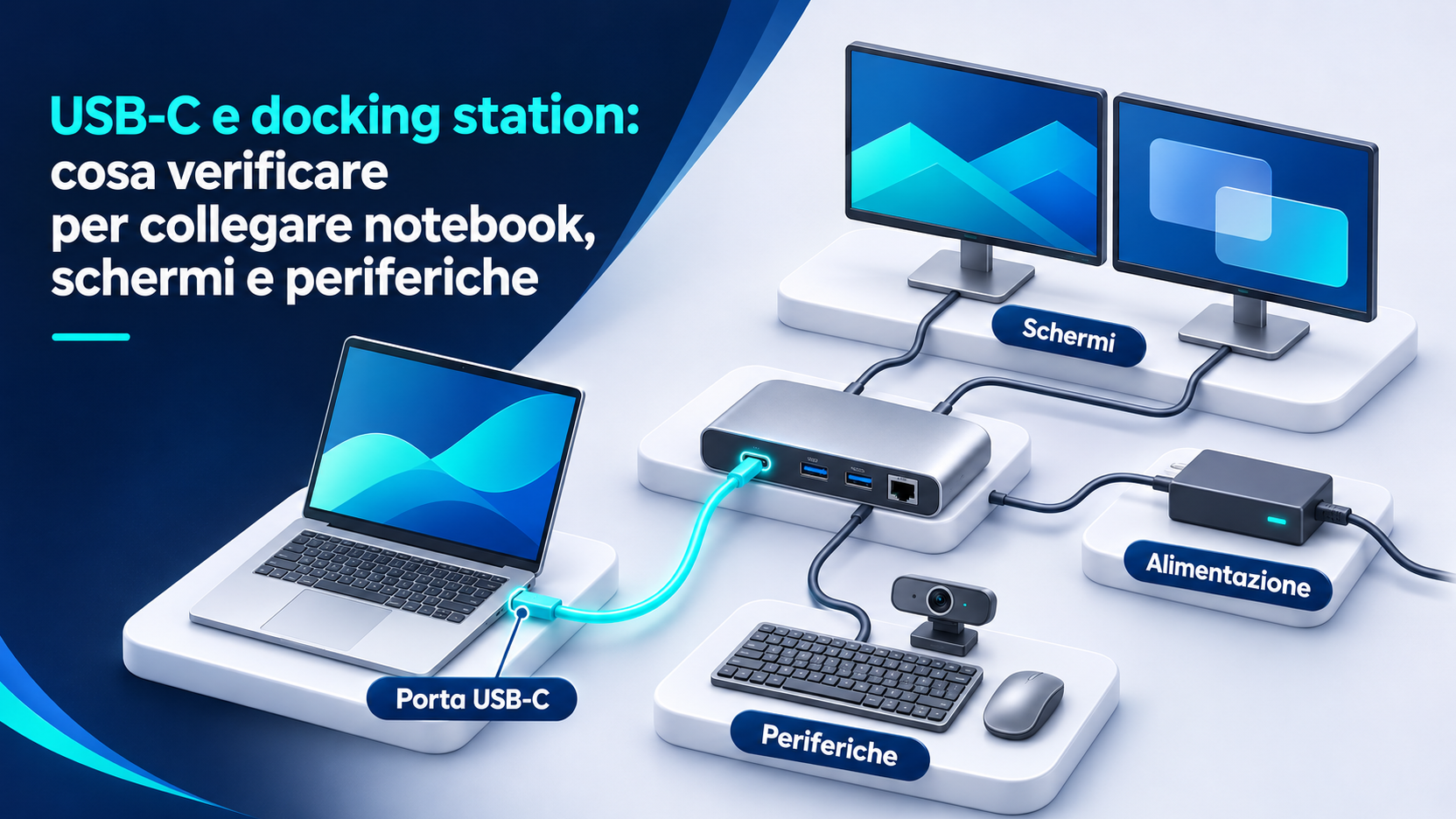
Connecting your laptop to a docking station gives you access to your monitors, keyboard, network and power, which is especially convenient when you move between desks frequently. Problems arise when the connector fits and the mouse responds, but the monitor stays black. Or both screens turn on but show the same image, while the computer reports slow charging.
To find out whether a workstation will work, follow the entire connection path through the laptop port, the cable to the dock, the dock outputs and the connected devices. This guide helps you read the specifications, choose a setup and test it before rolling it out to multiple desks.
Start with the work the setup needs to support
Describe how the person at the desk will work. A monitor for documents, a keyboard and a mouse have different requirements from two high-resolution monitors, a webcam and an external SSD used for frequent transfers. Also specify whether the laptop needs to charge from the dock and whether it will be used with the lid closed.
List the functions that need to work at the same time. A meeting room may need a webcam, microphone, network connection and external display during the same call. A shared desk may need to accommodate different laptops without swapping cables. Set the minimum for each case, such as a desktop extended across two displays at a specified refresh rate, or one external display and charging throughout the day.
Read the specifications for the specific USB-C port
USB-C refers to the reversible connector. The available features depend on how the port is implemented. A port can support USB data, video output and charging in different combinations. Even on the same laptop, check each port in the manual for the exact model. The marking next to the connector can guide your search, and the manual confirms the stated capabilities. USB-IF guidelines for USB Type-C
Look for three details separately. Check the data protocol and speed, video support and whether the port can receive power. If the manufacturer lists ports by side, note which one is intended for the dock. This helps when setting up a desk or opening a support ticket, since moving the cable to another port can change the result even on the same computer.
Distinguish USB4 and Thunderbolt from the connector’s capabilities
USB4 and Thunderbolt use the USB-C connector. If the dock requires one of these connections, check the generation the laptop supports, the stated speed and the conditions for using the video outputs. Thunderbolt 4 certification specifies minimum requirements, including a link capacity of 40 Gbit/s. This figure applies to the connection and should be read alongside the device specifications. Intel’s guide to Thunderbolt 4
A dock may also list support for other types of USB-C ports, with reduced performance or fewer features. Look for a table in the manual that distinguishes the different ways it can connect to a computer. If the description only says “USB-C compatible,” ask which features are available with your laptop, especially if you need several monitors or high-speed peripherals.
Choose between a hub, a powered dock and a monitor with a hub
A compact hub may be enough if you only need to add a few ports to a laptop. A desktop dock with a dedicated power supply lets you leave monitors and accessories connected and can also charge a compatible laptop. Some monitors include a hub and can serve as the laptop’s connection point. Consider how many devices you need, how much desk space you have and how often you will carry the adapter.
For a hub with pass-through charging, check whether a charger is included and whether it needs a dedicated port. On a monitor with a hub, identify the USB-C port that connects to the computer, since the others may be intended for accessories. If the desk is used by both laptops and desktop computers, check which functions remain available when you switch to another video input.
Find out how video reaches the dock
A USB-C dock that carries video through DisplayPort Alt Mode receives a DisplayPort signal from the laptop’s port. Depending on its design, the dock can send that signal through a DisplayPort output or convert it for other outputs, such as HDMI. For this setup, the computer’s manual should confirm that the port supports the required video mode. A working keyboard and mouse confirm the data path. Check video separately. VESA DisplayPort FAQ
For USB4 or Thunderbolt docks, consult the documented video configurations for the connection you actually use. Then write down the full path, such as laptop, dock cable, HDMI output, HDMI cable and monitor input. This sequence helps pinpoint where to look when the same dock works with one display but has trouble with another.
Check resolution and refresh rate together
A label such as “4K” leaves several practical questions open. At what refresh rate, with how many outputs active and through which port on the computer? Refresh rate is measured in hertz and affects how smoothly motion appears on screen. Use the dock’s table to match the number of displays and the outputs in use with the laptop’s video capabilities. Dell’s WD19 manual is an example of a table where supported setups depend on incoming video bandwidth and the number of displays. Dell WD19 display resolution table
Once everything is connected, check the actual resolution and refresh rate of each display in the system settings. If your work requires HDR or specific color modes, test those features with all the intended monitors already connected.
Check how many monitors can extend the desktop
Decide whether to mirror the image or extend the desktop so that different windows can appear on different screens. Check how many external monitors the laptop supports under the intended conditions, including use of the built-in display or operation with the lid closed. For MacBook Pro, Apple lists limits by model and chip and documents the supported combinations of resolution and refresh rate. Apple’s guide to external displays for MacBook Pro
If a dock splits a DisplayPort connection using Multi-Stream Transport, or MST, check whether the laptop, operating system and dock support desktop extension through those outputs. Before buying, look for explicit confirmation of the behavior you need. During testing, move a window from one screen to the other and confirm that the system detects each display separately. VESA FAQ on DisplayPort and MST
Understand when a dock uses DisplayLink
Some docks handle one or more video outputs through DisplayLink, using software on the computer. The manual should identify which outputs use this method. Before choosing it, verify that your operating system version is supported and that IT can deploy and update the software. On macOS, also check the permissions required by the version of DisplayLink Manager you plan to use. Synaptics documentation for DisplayLink on macOS
Test real tasks before adopting the setup. An office workstation may need to share its screen during meetings, play video and reconnect after sleep. If a display needs to work before the user signs in, test that stage as well. These checks help determine which outputs to use and which software dependencies to document.
Check how much power is available to the laptop
For USB-C charging, check whether the laptop port supports USB Power Delivery and how much power the dock specifies it can deliver to the computer. The dock’s power supply may also power the dock itself and its peripherals. Compare the power available to the laptop with the model’s charging specifications and take the cable into account. USB-IF on USB Power Delivery
Check whether the specifications distinguish input power from output power and whether the figure changes with the supplied power adapter or the computer connected. Dell, for example, distinguishes the WD19 power adapter rating from the power delivered to the laptop. Record both values in the workstation documentation, along with the equipment combination they apply to. Dell WD19 power specifications
Test charging while you work
A charging icon shows that the system detects a power source. To see whether it is sufficient, start with a partially charged battery and perform a typical task with the monitors and accessories already connected. Watch how the battery percentage changes and look for any slow-charging messages. Account for any charge limits configured on the laptop.
If the battery level drops during use, compare the behavior with the charger specified by the manufacturer and check the port, cable and dock power supply. A setup with a power-hungry laptop may require a different dock or the laptop’s own power adapter alongside the dock. Document which setup passes the test. Microsoft’s guide to USB-C and charging problems
Choose the cable between the laptop and dock
Start with the cable supplied with the dock or a replacement explicitly suited to the features you need. Compare data speed, supported power and compatibility with video or the required protocol. A USB-C cable built to USB 2.0 data specifications alone may support Power Delivery while being unsuitable for video through DisplayPort Alt Mode. The connector looks the same. USB-IF guidelines for USB Type-C cables
Choose a length that suits the desk and leave enough slack to move the computer without pulling on the connector. At shared workstations, make the dock cable easy to identify and keep a tested spare. If a problem appears after moving the desk, compare the installed cable with the one used during testing.
Check monitor inputs and adapters
Identify the dock output and the actual input on the monitor. If you use an adapter between different connector types, check the conversion direction specified by the manufacturer and the video mode it supports. An adapter designed for a DisplayPort source and an HDMI display needs to be assessed for that path. Include every adapter that will stay at the desk in your test.
Select the correct input on the monitor and verify that the operating system detects the display. If the model has multiple inputs, record the one you used, since available modes can depend on the input. For the first test, use the simplest path through the available ports, then add the required accessories one at a time. Microsoft’s guide to troubleshooting external monitors
Assess how video and data share bandwidth
The connection to the laptop can serve several devices at once. With DisplayPort Alt Mode, some setups use part of the high-speed lanes for video and leave the rest for high-speed USB traffic. Others allocate more lanes to video and retain the ability to carry USB 2.0 data. The result depends on the configuration in use. VESA overview of DisplayPort Alt Mode
If you need to transfer files from an SSD with two monitors active, test under those conditions. If a USB-C monitor lets you prioritize video resolution or USB speed, consult the manual and record the setting you tested. If an accessory needs consistent performance, try connecting it directly to a suitable port on the laptop and compare how it behaves.
Assign ports to the most demanding peripherals
Count the ports that are actually available and assign each to a device. A keyboard and mouse can use basic ports, leaving higher-performance ports for an external drive or another peripheral that needs them. Identify the port that connects to the computer and the ports intended for accessories, then check the specifications of each in the dock manual.
For a drive or other USB-powered device, also check whether the port supplies enough power. If the peripheral disconnects during use, test it on its own on the same port and then directly on the laptop using a suitable cable. If it works only in the second setup, the comparison helps focus your checks on the power supply, cable and dock specifications. Microsoft’s USB-C troubleshooting guide
Verify Ethernet, audio and webcam operation in applications
Connect the Ethernet cable and verify that the computer can access work services over the intended connection. In a managed environment, ask the network administrator whether the dock’s Ethernet adapter requires registration or a specific configuration. Test moving between desks, especially if users need access to internal resources or need to maintain a VPN connection.
Make a test call with the application used at work. Select the microphone, speakers and webcam explicitly and check that the selection still works after unplugging and reconnecting the laptop. If the monitor has speakers, also check where audio is routed. Multiple outputs may appear in settings, and the application may use the one selected previously.
Check drivers, firmware and business features
On the laptop and dock support pages, look for updates that apply to the model and operating system. Read the release notes and installation instructions, especially if the issue involves waking from sleep, networking or monitor detection. For a fleet of computers, test updates on one workstation before deploying them and record the versions that work. Microsoft troubleshooting guide for Surface Dock
If you need features such as powering on the laptop from the dock button or booting over the network, treat them as separate requirements. Look for confirmation that the two models and your organization’s settings support them. A dock may behave differently before sign-in than it does during a session. Test those features under the conditions in which they will be used.
Test connection, sleep and reconnection
Connect the dock power supply, if applicable, following the manufacturer’s instructions. Test the connection to the laptop with one monitor, then add the second screen and the intended peripherals. Once everything works, unplug and reconnect the laptop the way a user would. Repeat the test after sleep and, where applicable, with the lid closed and at the sign-in screen.
Record what returns after reconnection, including screen layout, resolution, network, audio and accessories. If a problem appears only when waking from sleep, record that sequence before changing the setup. Distinguishing the initial connection from waking after sleep makes the issue reproducible and gives support staff a concrete description to work with.
Diagnose a blank or mirrored display
If there is no image, check the monitor input, video cable, dock output and laptop USB-C port in that order. Test a single display with a known working cable. If the laptop has a compatible direct output, try it for comparison. Reintroduce the dock and second monitor one at a time to see at which step the problem appears. Microsoft’s guide to external monitor connections
If both screens show the same image, check whether the system detects them separately and whether extended mode is selected. If only one monitor appears in settings, return to the dock and laptop documentation and compare the outputs in use with the supported combinations. Record the result even if a different setup resolves the problem.
Diagnose disconnects and inconsistent performance
If several devices disappear at once, start with what they share. Check the cable between the dock and laptop, the computer port and the dock’s power supply. If only one accessory disconnects, try a different port and then connect it directly to the laptop. Change one item at a time and record whether the issue occurs on connection, during a transfer or after waking from sleep.
For an external drive, use test files and finish all operations before unplugging it. If the issue only affects the network, check the Ethernet cable and try a known working network jack for comparison. In a support ticket, include the device models, system version, ports used, messages shown and steps that reproduce the problem.
Standardize shared desks
Create a reference sheet for each approved setup, listing the laptop, dock and power supply models, cables, video outputs and relevant software versions. For each laptop family, state which features were verified, including the number of screens, refresh rate, charging and network access. If two similar laptops behave differently, make that exception visible to whoever assigns the workstations.
Before buying multiple units, test the setup with one laptop from each family in use and with the monitors you already have. When replacing a dock, cable or display, repeat the checks affected by the change. A short, up-to-date reference sheet helps you prepare a replacement without having to reconstruct the cabling each time.
Pre-purchase checklist
Use this list to compare the specifications with the workstation you plan to set up.
- Exact laptop model and port to use for the dock.
- Protocol required by the dock and features available with that laptop.
- Number of screens in extended mode, with the resolution and refresh rate of each.
- Outputs that can be used together, video cables and monitor inputs.
- Power delivered to the laptop, dock power adapter and compatible cable.
- Peripheral ports, USB power, Ethernet, audio and webcam.
- Drivers, permissions and business features to verify.
- Test with all peripherals active, followed by sleep and reconnection.
For each critical item, keep the manual reference or the test result. If a requirement remains open, ask for confirmation and describe the entire setup, including the number of monitors and the ports you plan to use.
Frequently asked questions
Can I use any USB-C cable?
Choose a cable that supports the required combination of data, video and power. For the first test, use the cable specified by the dock manufacturer. If you replace it, compare the specifications and repeat the test with all accessories active.
Do two HDMI outputs always let me extend the desktop across two screens?
That depends on the combinations documented for the dock, laptop and operating system. Check how the two outputs are handled and whether they can run together at the required resolution and refresh rate. Verify in settings that the system detects the monitors separately.
Can I charge the laptop while using the dock?
Yes, if the dock supplies power to the laptop and the port and cable support the required charging. Check how much power is available to the computer and test the setup while working. Some laptops may also need their dedicated power adapter.
Will a dock that works with one laptop also work with another?
Check the second model and the port you are using. The keyboard and mouse may work while the number of available monitors or the charging power varies. At shared desks, record the test results for each laptop family.
Conclusion
Choose a docking station based on what people need to do at the desk. Specify which screens and peripherals must work together, then compare the specifications of the laptop port, dock and cables. For video, look for the exact combination of outputs, resolutions and refresh rates. For charging, check how much power reaches the computer.
Test the workstation with the accessories active, observe how it charges during use and reconnect the laptop after sleep. Record the setups that pass, so anyone setting up a new desk or replacing a component has a verified reference.
Would you like to explore this topic for your business? Azienda Digitale can help you assess the right solutions and put them into practice. Azienda Digitale